How do I add a Co-user?
How do I add a co – user?
The following steps will allow administrators to add co - users to their account.
Step 1 – Log in to your account. You will automatically be directed to the home page.
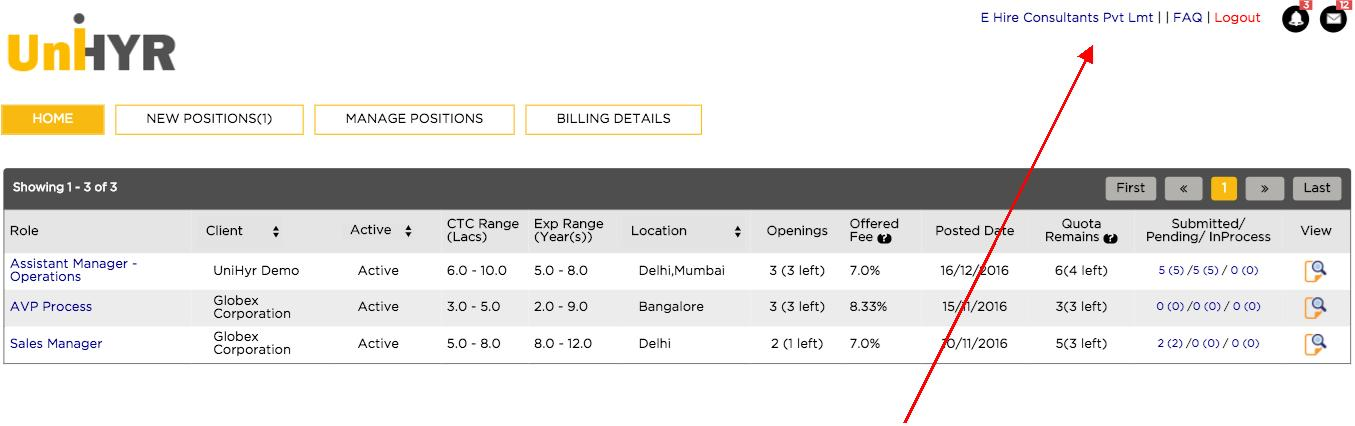
Click on your account name which is shown on the top left side of the page. (In this case E Hire Consultants Pvt Ltd)
Step 2 – You will be directed to the account information page.
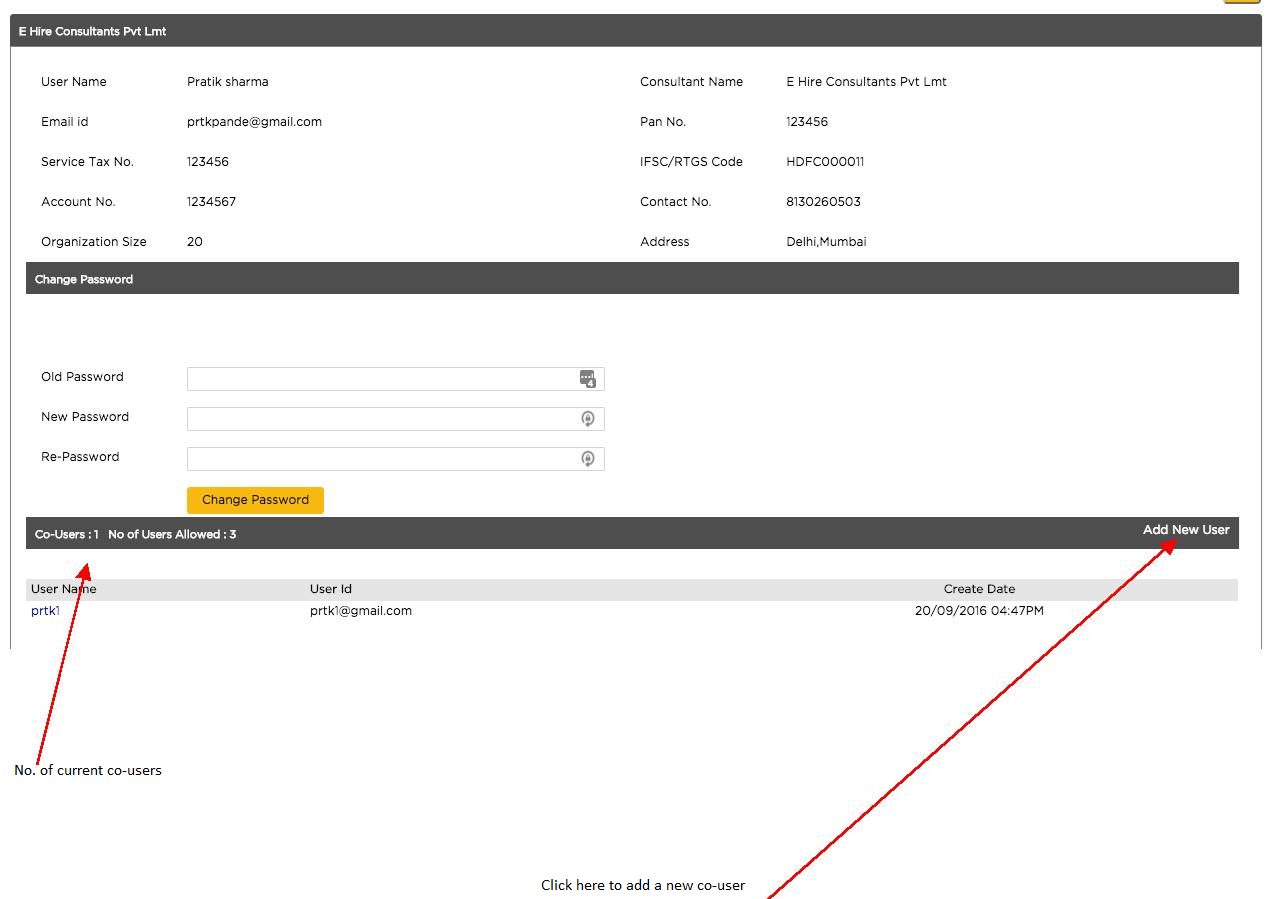
You will find all relevant information related to your account on this
Co User – Number of secondary users registered to your
No of users allowed – Number of secondary users allowed in your account
Step 3 – To add a Co – User, Select Add New User
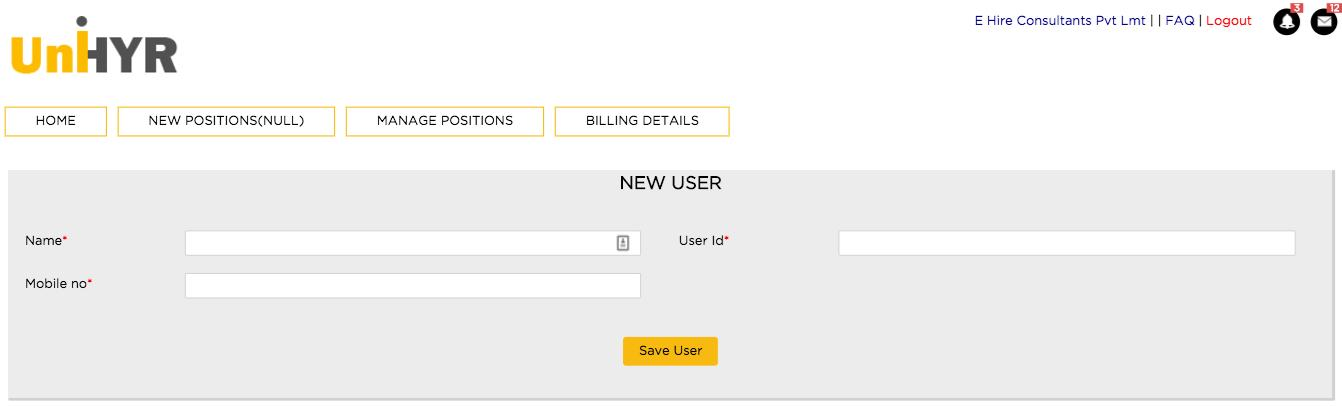
Fill in the following details –
Name – Name of the co – user
User ID – Email address of the co – user
Mobile no – Contact number of the co – user
Step 5 – After filling in the details, select Save User
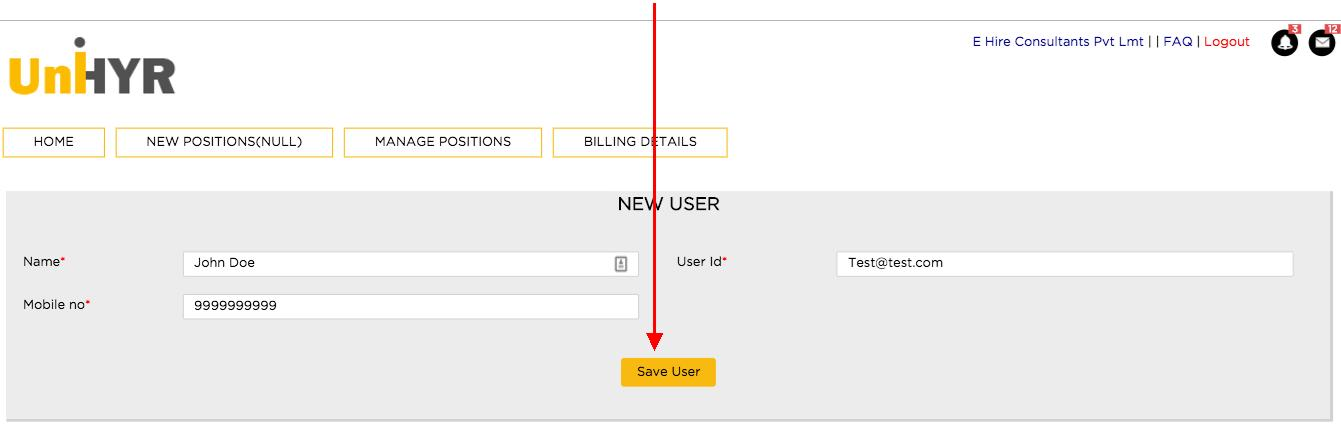
Step 6 –Congratulations, you have created a new Co – user.

Step 7 – A one-time password will be sent to the co – user at their registered email address, which can be changed after logging in. Now the co-user can start using UniHyr using their login credentials.