How do I check for new messages and notifications?
How do I check for new messages and notifications?
You receive regular updates in the form of messages and notifications on the platform. The following steps will help you in staying updated on your candidate activity.
Step 1 – Login to your account. You will be automatically directed to the homepage.
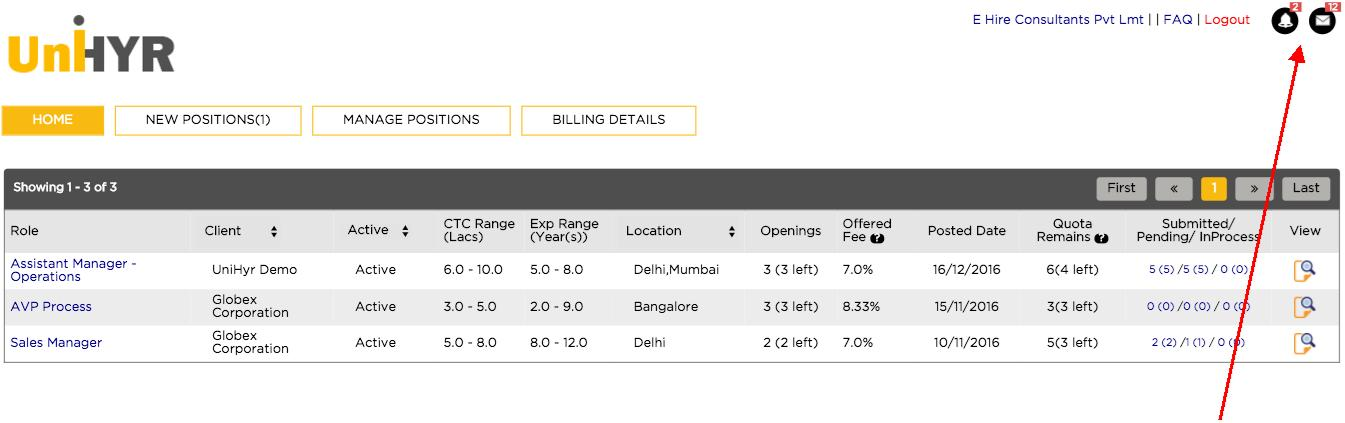
On the top right corner, you will find the notification icon and the message icon. The one on the left is the notification icon and the one on the right is the message icon.
The numbers shown next to each icon will show the quantum of unread/new updates and messages.
Step 2 – To check your notifications, select the notification icon. A pop down box will appear showcasing new/unread notifications you have received.
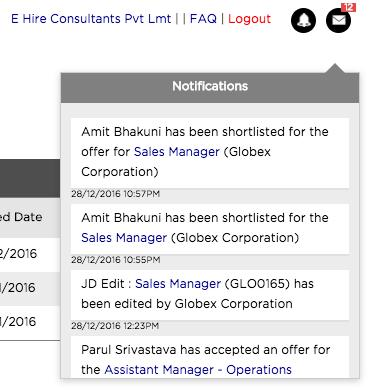
The notification icon will provide you update on any change in the status of your candidate or the job description. Clicking on any of the notification box will directly take you to the relevant page so you can take the required action.
Step 3 – To check your messages, select the message icon. A pop down box will appear showcasing new/unread messages you have received.
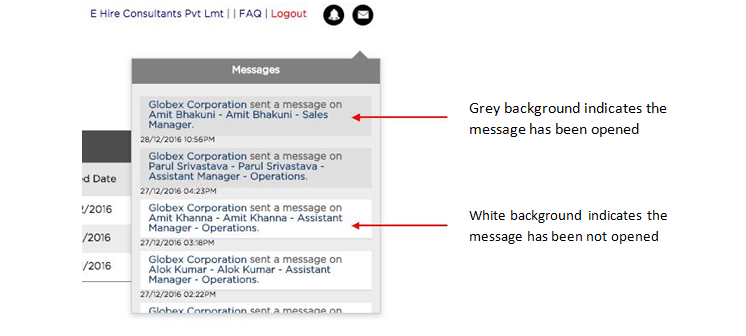
You receive notifications on any new/unread messages you have received form any client. Clicking on any of the notification box will directly take you to the relevant page so you can take the required action.