How do I edit details of Uploaded Profiles?
How do I edit details of uploaded profiles?
To edit candidate data after his/her profile has been uploaded, please follow the steps mentioned below.
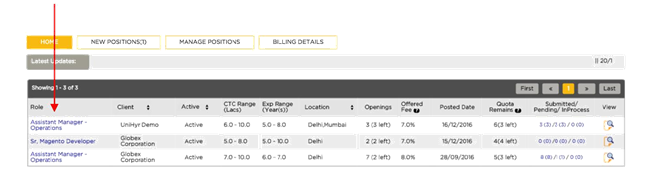
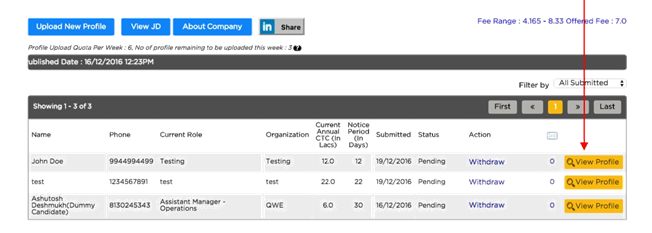
Step 2 – Under the manage positions page, click on View Profile of the candidate who’s details you want to edit. In this case – John Doe. You will be directed to the page where you can view candidate details.
Step 3 – This page will show detailed candidate information. You can edit data by clicking on the “pencil icon”. To edit notice period, click on pencil icon next to notice period.
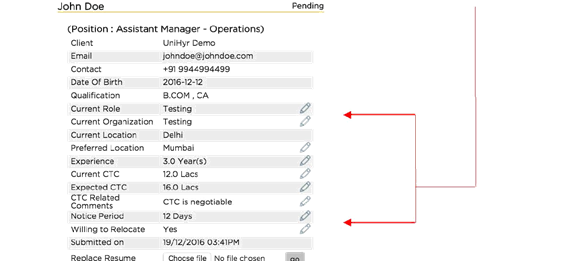
Step 4 – Make the desired changes. Click on green icon to confirm or the red icon to cancel.
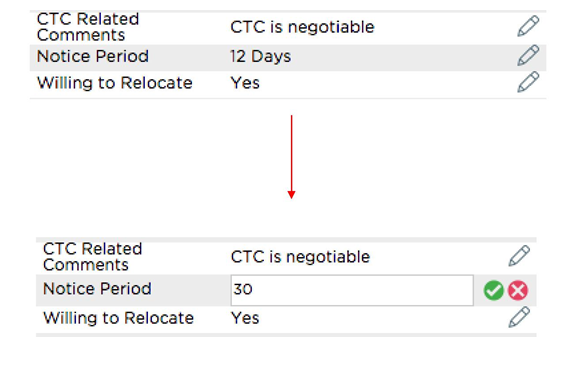
Step 5 – Congratulations, you have successfully made changes to candidate profile.

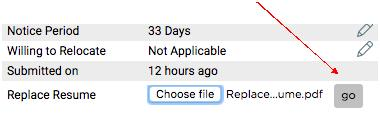
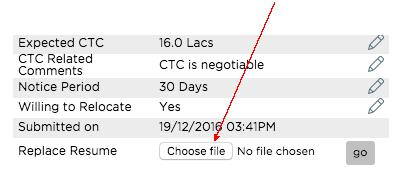
Step 6 – You can edit candidates resume as well. Select Choose File next to Replace Resume.
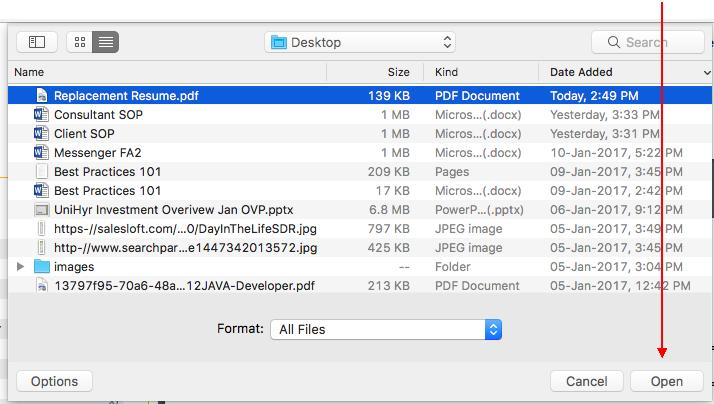
Step 7 – Choose the resume you want to upload (Replacement Resume) and select Open.
Step 8 – Confirm by selecting Go. Your resume will be replaced.